Updated: 23 September 2026
Help & frequently asked questions
A guide for iPhone and iPad: photograph artworks in Artivo, extract label information and check the saved details. The steps below use the app’s English labels.
Capture an artwork with the Artivo camera
- Open Artivo and tap the red camera icon at the bottom centre. Allow camera access if asked. You are now taking photos inside Artivo.
- Artivo automatically creates a new visit for your first captures and assigns the photos to this current visit. You add the museum or exhibition name when you finish the visit.
- Point the camera at the artwork and tap the round shutter button. Artivo then switches to capturing the label.
- Photograph the corresponding museum label using the shutter button. All the text should be sharp and readable, without reflections. Artivo saves the artwork and label photos together. If the photo check shows a warning, check the photos and retake them if needed.
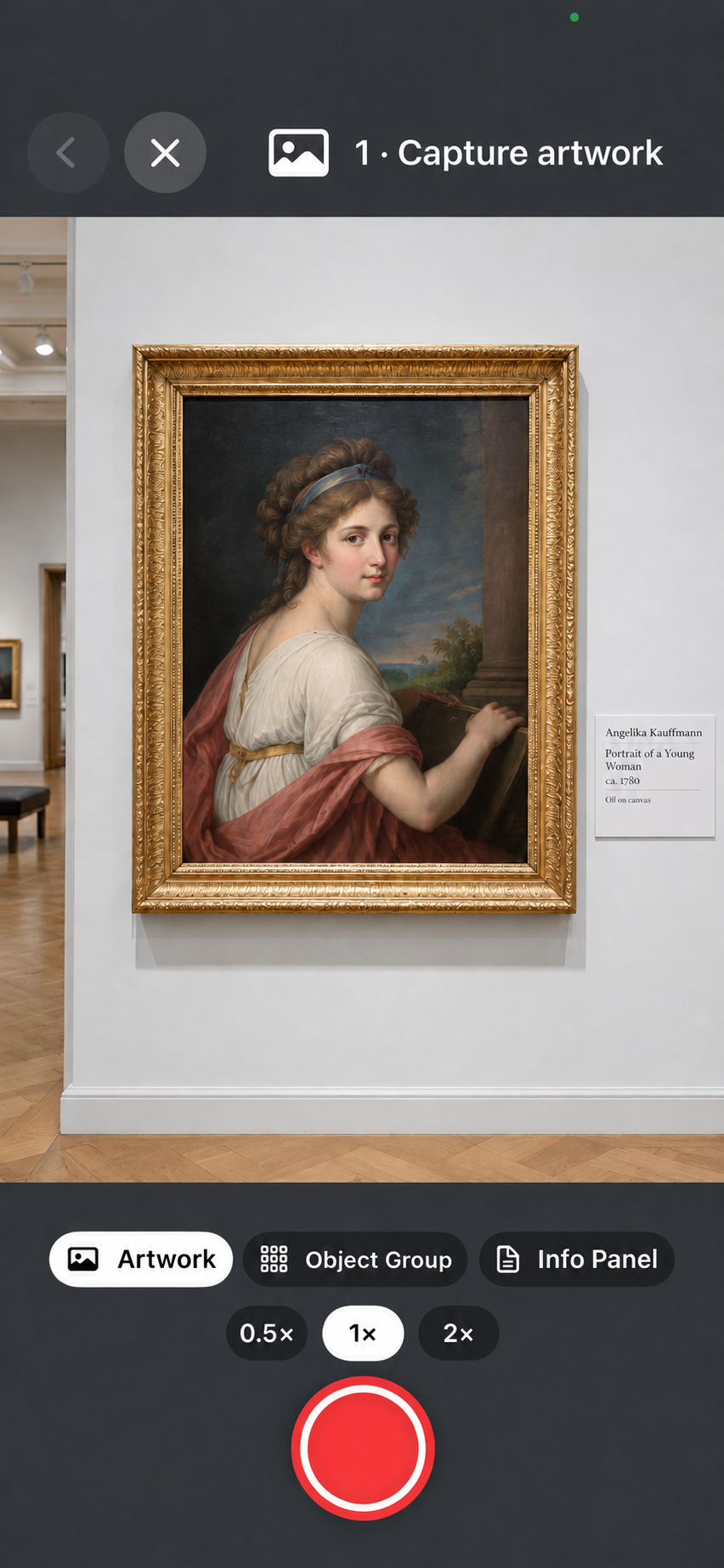
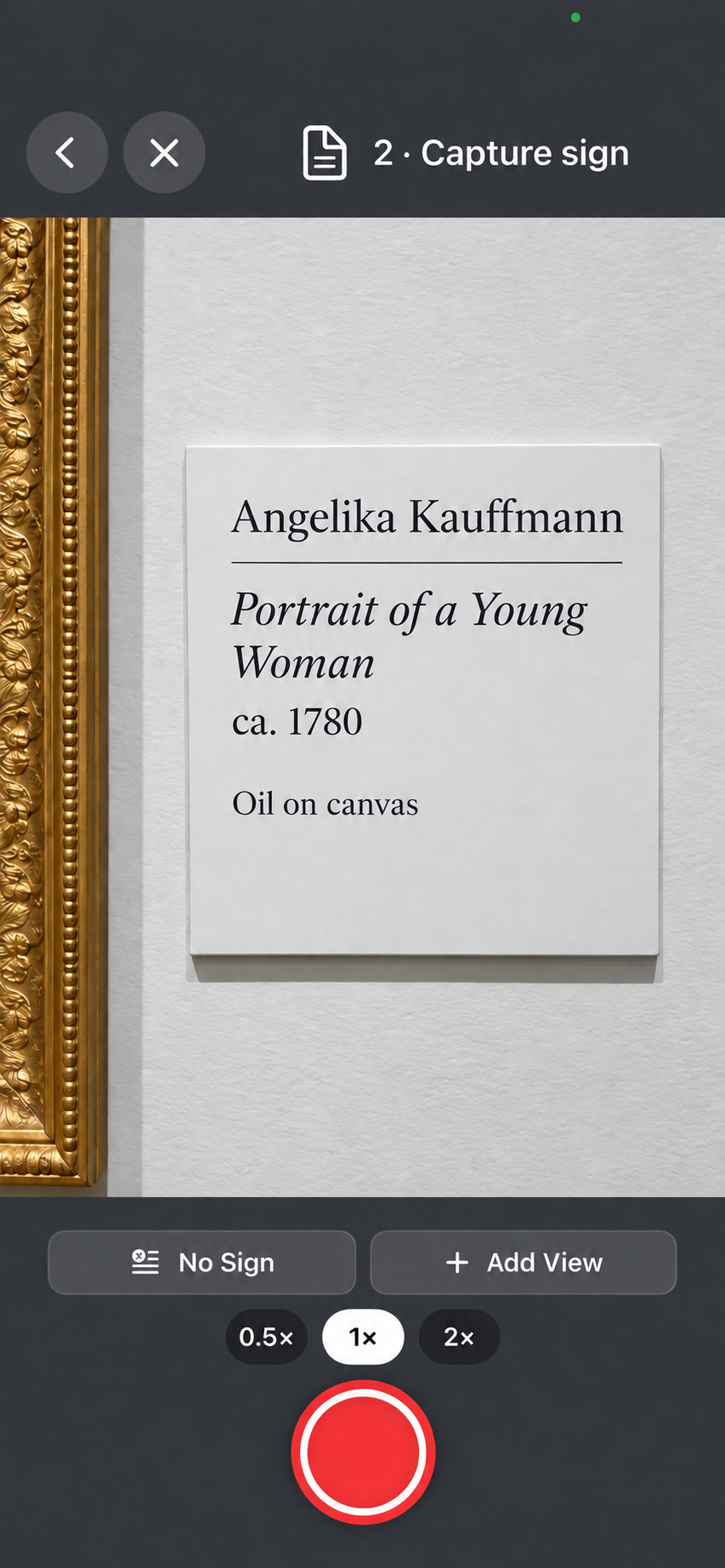
Tap an image to enlarge it.
- To capture another work, tap the camera icon again or “Capture next artwork” when that button is shown. Further captures still belong to the current visit.
- When you are finished, tap “End Visit”. In the closing dialog, choose the museum or exhibition and fill in the visit details. Confirm with “Finish visit” at the bottom.
- Open “Inbox” at the bottom, then “To Process”. Tap “Start extraction” to process the pending entries. You need an internet connection, Sign in with Apple and available extraction allowance. If automatic extraction is enabled, processing may already be running or complete.
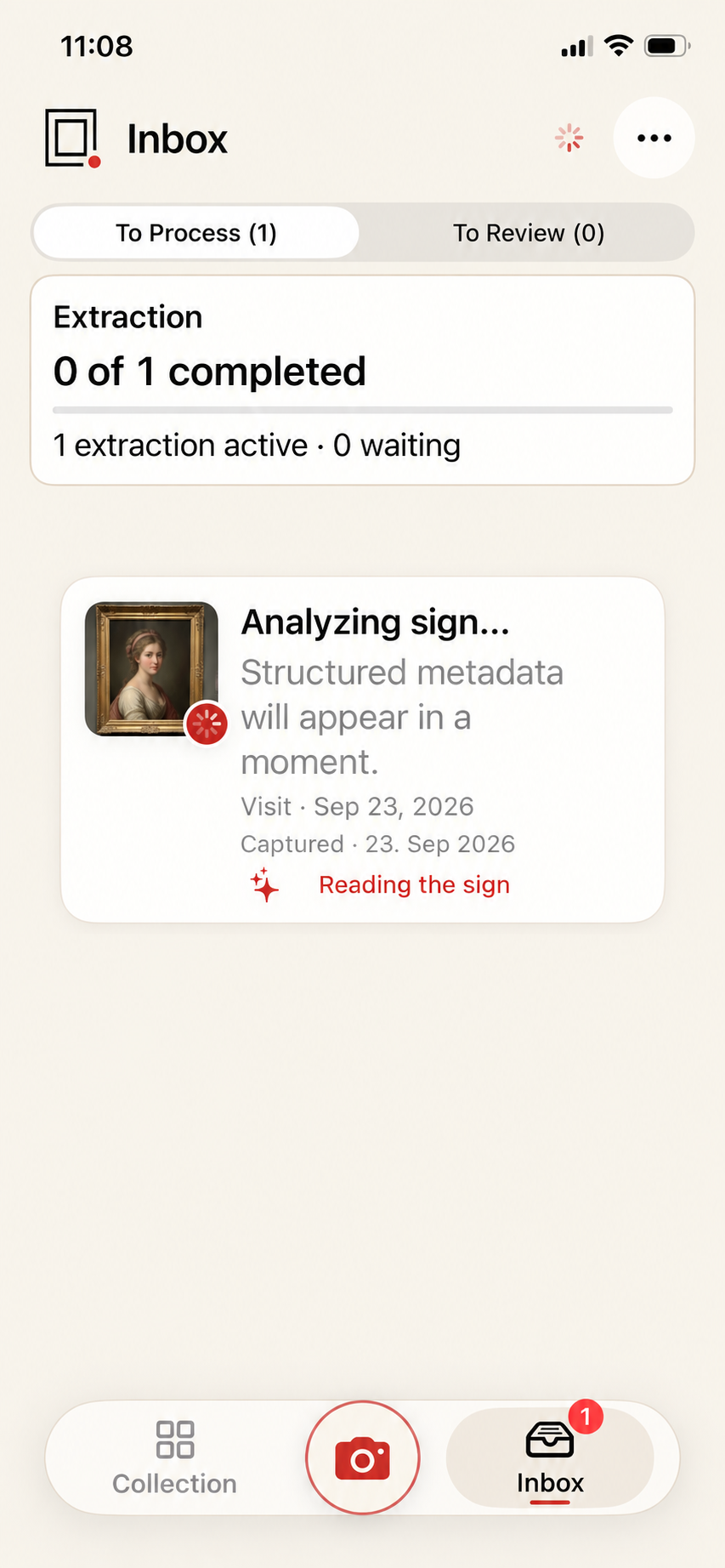
- Entries with unclear results appear in “Inbox” under “To Review”. Open these entries, read the individual notices and correct the information if needed. Results without issues do not need to be confirmed individually; you will find them in your collection. You can change any artwork there using “Edit”, then “Save”.
Import existing photos
- Open the three-dot menu in Artivo and tap “Import Photos”.
- Enter the museum or exhibition where the photos were taken. Artivo determines the visit date from the capture dates of the imported photos.
- Tap “Choose Photos” and select the artwork photos and their corresponding label photos from your photo library.
- Check the suggested pairs: artwork on the left, label on the right. If a pairing is incorrect, fix it using “Edit pair”.
- Tap the button at the bottom to import the displayed number of entries. If extraction does not start automatically, open “Inbox” → “To Process” and tap “Start extraction”.
Capturing and extracting
What is an extraction?
During extraction, Artivo reads the text in your museum label photo and fills in fields such as title, artist, date and medium. A paired artwork photo can help fill in missing artwork type or period information. Camera captures and imported label photos use the same extraction allowance. Extracting again starts another processing run and may use additional allowance. Editing information by hand does not use your extraction allowance.
How can I get more reliable results?
Photograph the whole label clearly, without reflections and as straight on as possible. Pair it with the correct artwork photo. The label provides the written information; the artwork photo can offer additional clues about artwork type or period. Pay particular attention to names, titles, dates and inferred classifications.
Why is information missing or incorrect?
Incomplete labels, unclear photos and ambiguous wording can lead to gaps or mistakes. Classifying a work from its image is not always straightforward either. You can correct the information yourself. AI results are suggestions, not an authoritative art-historical assessment.
Can I use older photos?
Yes. Open the three-dot menu and select “Import Photos”. Enter the museum or exhibition, then use “Choose Photos” to select the artwork and label photos. Artivo determines the visit date from the dates the photos were taken. Check the suggested pairs before importing. See “Import existing photos” above for the steps.
What should I do with an information panel?
An information panel provides background about a room, exhibition or topic. Keep it as an information panel rather than an individual artwork. Its text appears in Description.
Exploring your collection
How do I find artworks again?
Explore your collection through Artworks, Artists, Museums and Visits, and narrow it down with search and filters. Favorites help you find special works again.
What do the links in artwork details do?
Linked information takes you to other matching entries in your collection, such as works by the same artist, in the same museum or with the same theme. A link appears only when there is at least one other matching entry. A specific medium such as wool should lead to that material; a broader search category can include several subcategories.
Can an artwork have more than one sighting?
Yes. You may see the same work on different visits. Linked sightings keep these encounters together while preserving the individual visits.
Chat and sources
What can I ask Artivo?
Open Chat for an artwork and ask about its subject, technique or historical context, for example. Live conversations are also available. Answers may contain errors; check important statements against reliable sources.
How do I find sources for an artwork?
Open the artwork in your collection and select “Details”. Scroll to “Sources” and tap “Find Sources”. Artivo looks for a matching museum catalogue and other sources. Before searching, check the museum, title, artist and inventory number in particular. If there are no results, you can correct these details and try again. Research requires sign-in, an internet connection and available chat and research budget.
Do I need an internet connection?
Extraction, chat, live conversations and source research require internet access and an Artivo sign-in. Collection content already available on your device can also be viewed and edited offline. Content not yet available locally and synchronisation between devices require a connection.
Artivo Plus and allowances
What can I try for free?
You receive a one-time allowance of 50 extractions with no time limit. There is also a separate, limited trial budget for chat and other supported features such as research and live conversations. This is separate from your extraction allowance. You can see your remaining allowances in the Artivo account section of Settings.
What does Artivo Plus include?
The monthly subscription includes 100 extractions per subscription month. The annual subscription includes 1,200 extractions, with the entire annual allowance available at the start of the paid period. There is also a limited shared budget for chat, research and other features charged to that budget, such as live conversations, reading answers aloud and visit summaries. Artivo Plus is not unlimited. The price for your App Store is shown when you subscribe.
What happens to unused allowances?
Subscription allowances apply to the relevant paid period and do not roll over into the next one. A new allowance starts when the subscription renews. Unused subscription allowance is no longer available after the subscription expires. Any remaining free extractions and trial budget are kept separately. While a subscription is active, its allowance is used first.
Why do I see an extraction count and a percentage?
Extractions are counted individually. Chat and research share a separate budget shown as a percentage. The work required for each request varies, so one percentage point does not represent a fixed number of messages. Small changes may not be visible because of rounding. A demanding request may require more budget than you have left.
What does “Refresh allowance” do?
It retrieves the current status of your Artivo account. It does not replenish used allowance. If the status is already up to date, the numbers stay the same.
When should I use “Restore Purchases”?
Use this if an existing subscription is not recognised, for example after reinstalling the app. Use the Apple Account you subscribed with. Restoring checks existing purchases; it does not reset used allowance or reactivate expired subscriptions.
How do I cancel or change my subscription?
Open “Manage Subscriptions” in Artivo or the subscriptions section of your Apple Account. Apple manages the subscription period, renewals and available changes there. Cancelling normally stops further renewal; check the end date shown by Apple. Your collection remains available after expiry. Signing out or deleting the app does not cancel a subscription.
Sign-in and data
Why “Continue with Apple”?
Signing in connects you to your Artivo account and its allowances. Artivo does not request your name or email address. Use the same sign-in on iPhone and iPad to access the same Artivo allowance. Enter an Apple password only in Apple’s own dialog, never send it to support.
What syncs between my devices?
Artivo uses your iCloud to synchronise your collection. Your devices must use the same iCloud account, and iCloud must be available for Artivo. Changes may take time to appear. Your iCloud collection and your sign-in for Artivo allowances serve different purposes.
What data is sent for AI features?
For AI features, selected photos, questions and relevant collection data are sent to OpenAI through the Artivo server. Live conversations also transmit your voice. Your collection remains on your devices and in your iCloud. Read the information about data processing in the app before starting.
Do I need a separate backup?
A separate backup is useful, especially before major changes. Artivo offers backup and restore features. Keep backups in a safe location of your choice. iCloud synchronisation does not replace an independent backup: changes can be carried over to other devices.
What happens when I delete my Artivo account?
Account deletion removes your Artivo account, its associated server content and the Apple sign-in connection. A pseudonymous usage record is retained so that signing in again does not create new free allowances. Your collection stays on your devices and in iCloud. You must cancel an Apple subscription separately under “Manage Subscriptions”. The app shows deletion progress.
Troubleshooting
Sign-in or allowance refresh fails. What can I do?
Check your internet connection and read the error message. If Artivo explicitly asks you to, use “Confirm app with Apple” and try again. This confirms the installation; it does not start a subscription. Sign in with Apple again if needed.
How do I report a problem?
Briefly describe what you were trying to do and what happened instead. The app version, device, operating system and a screenshot are helpful. For an extraction problem, the relevant label photo and extraction report can help if you are happy to share them. Check attachments for private content. Never send passwords or payment details.